Software & firmware
Excerpted from the supplied English User Manual v1.4. Chinese editorial corrections and later confirmations may not be synchronized. Check the Chinese reference where the two differ.
Configuration: dual-arm details apply only to dual-arm/mobile dual-arm robots. Older instructions differ in power timing, light names and homing motion; check the operational guidance and version notes on this page.
7 Robot Software Upgrade
7.1 Robot Body Firmware Upgrade
Use a browser to enter the robot management page and select the robot software version downloaded locally in advance for upgrade. The steps are as follows:
- Connection and IP settings:
a. Connect a personal computer to the robot.
b. Use the Shell command
ping 10.192.1.2to ensure the connection is normal. - Access the management page: enter the following in the browser address bar:http://10.192.1.2:8080 to enter the robot management page.
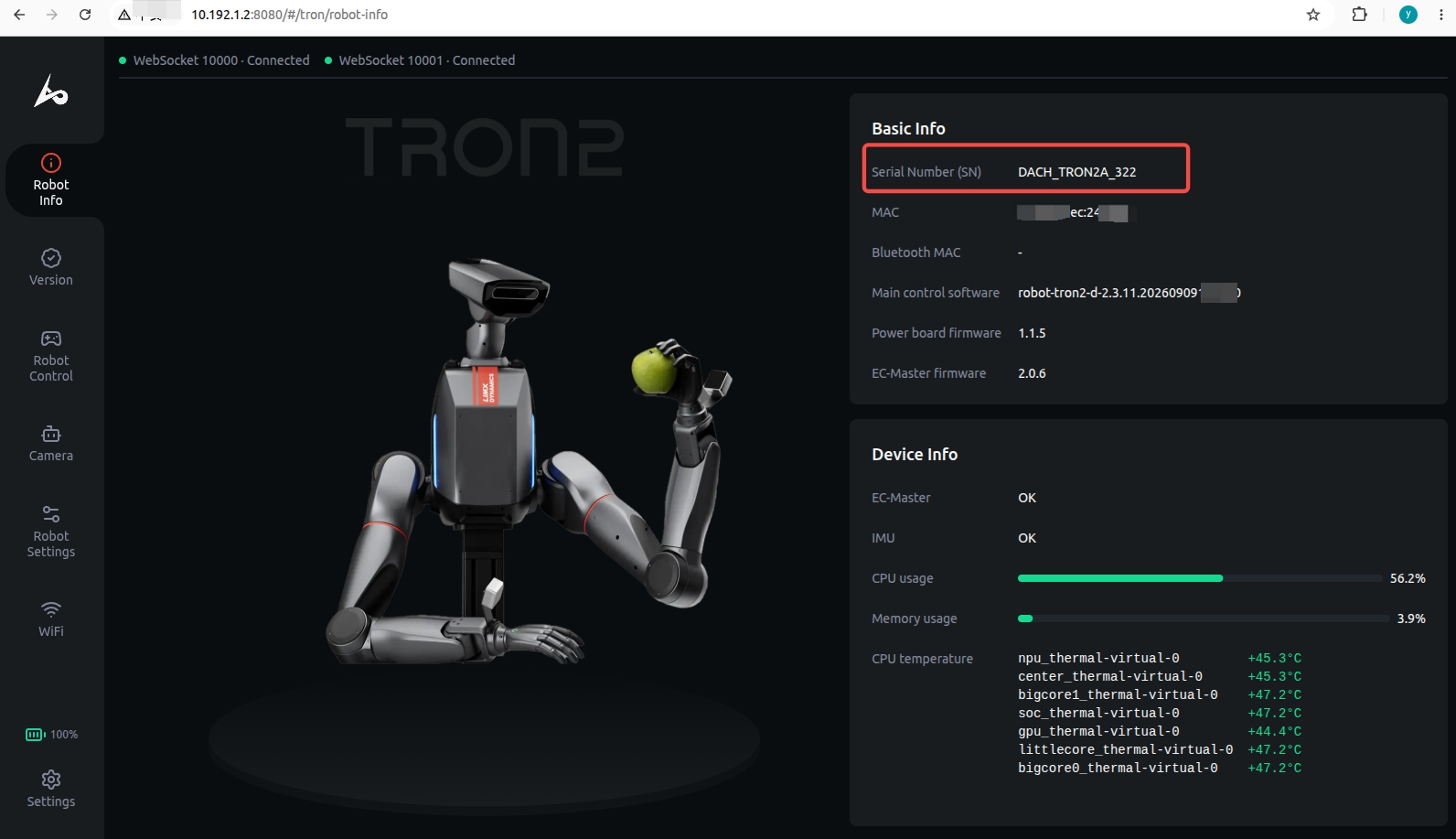
- Select and upgrade software:
a. Go to the the manufacturer official website → Downloads ,at https://www.limxdynamics.com/en/downloads. Select the product model TRON2, choose the firmware type and version you need, and download the firmware package to your local computer.
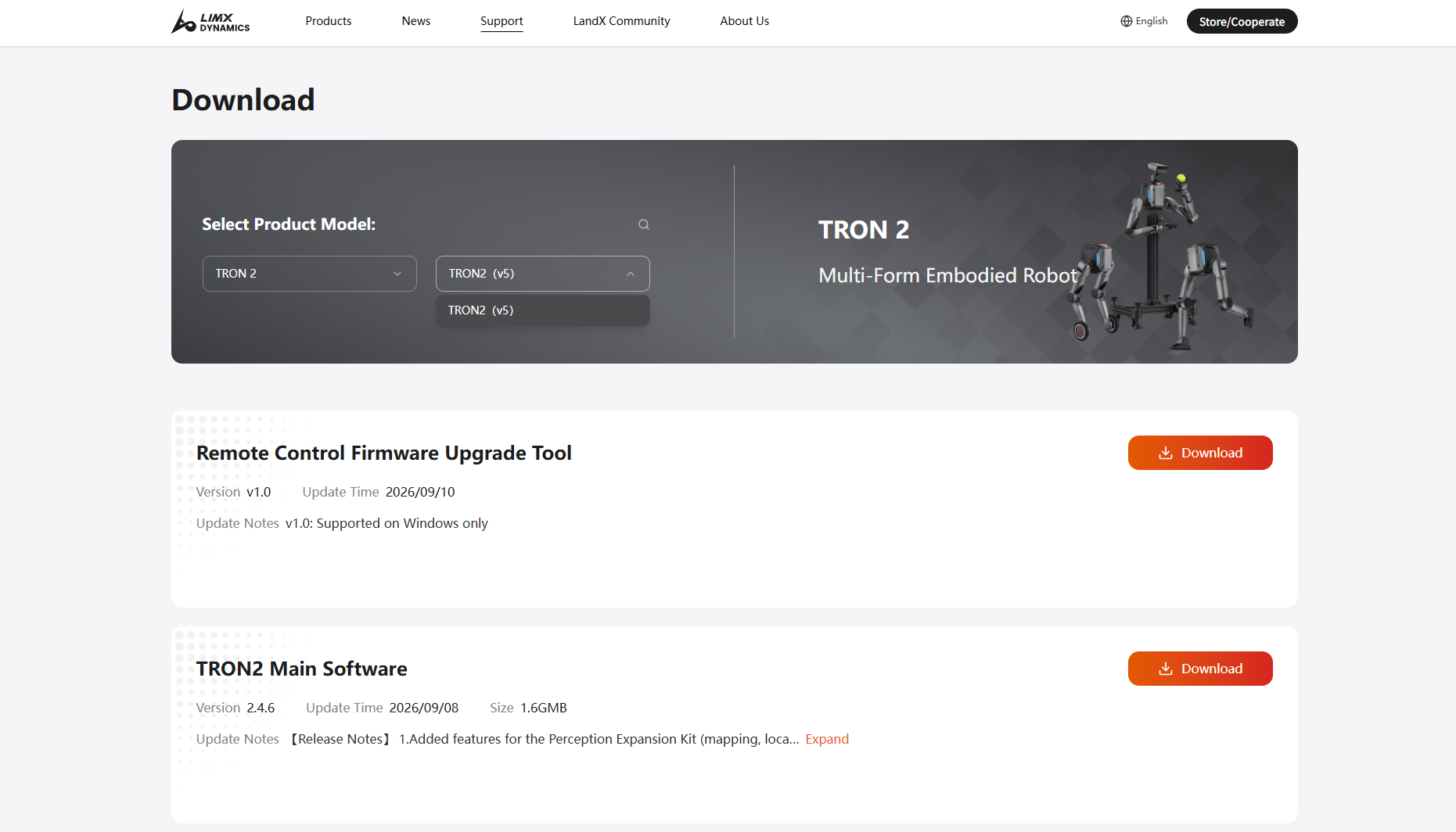
b. On the robot management page, go to the Version Management section. Select the firmware type you wish to upgrade, click Select file to upload the firmware package, then click the Upgrade button after the upload is complete. Wait patiently for the upgrade to finish.
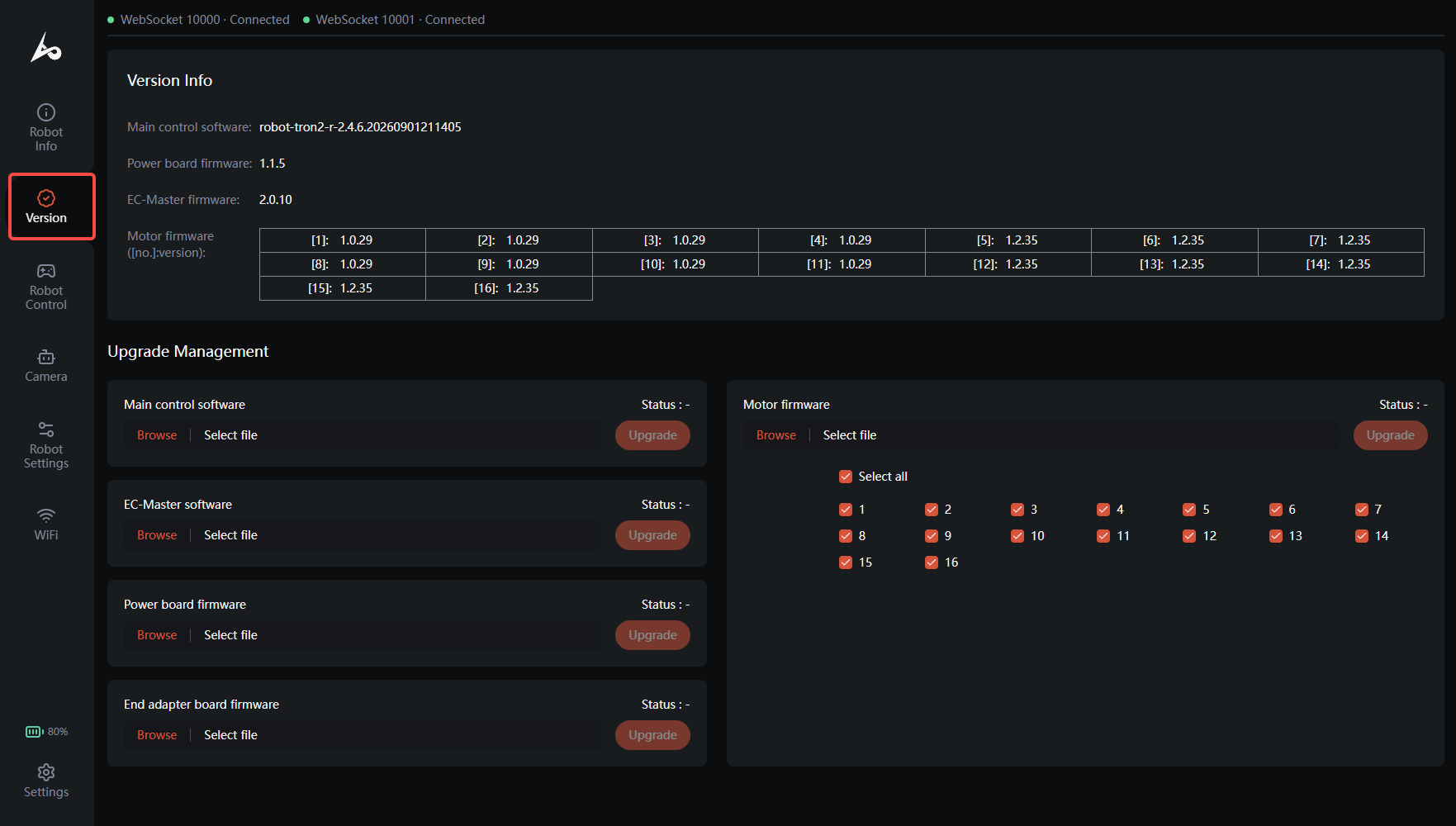
c. Note: Upgrading the motor driver firmware must be done in two steps (this applies to both the dual-arm configuration and the bipedal/wheeled-leg configuration). First, select all motors, choose the downloaded "TRON2 – Motor Driver Firmware", and click Upgrade.
Then, select all motors again, choose the downloaded "TRON2 – Motor Driver Firmware Supplementary Package", and click Upgrade.
d. Note: The robot will automatically restart after certain firmware upgrades are completed.
7.2 Upgrading the VR Device App Online
Before proceeding, make sure the VR device is connected to an external network.
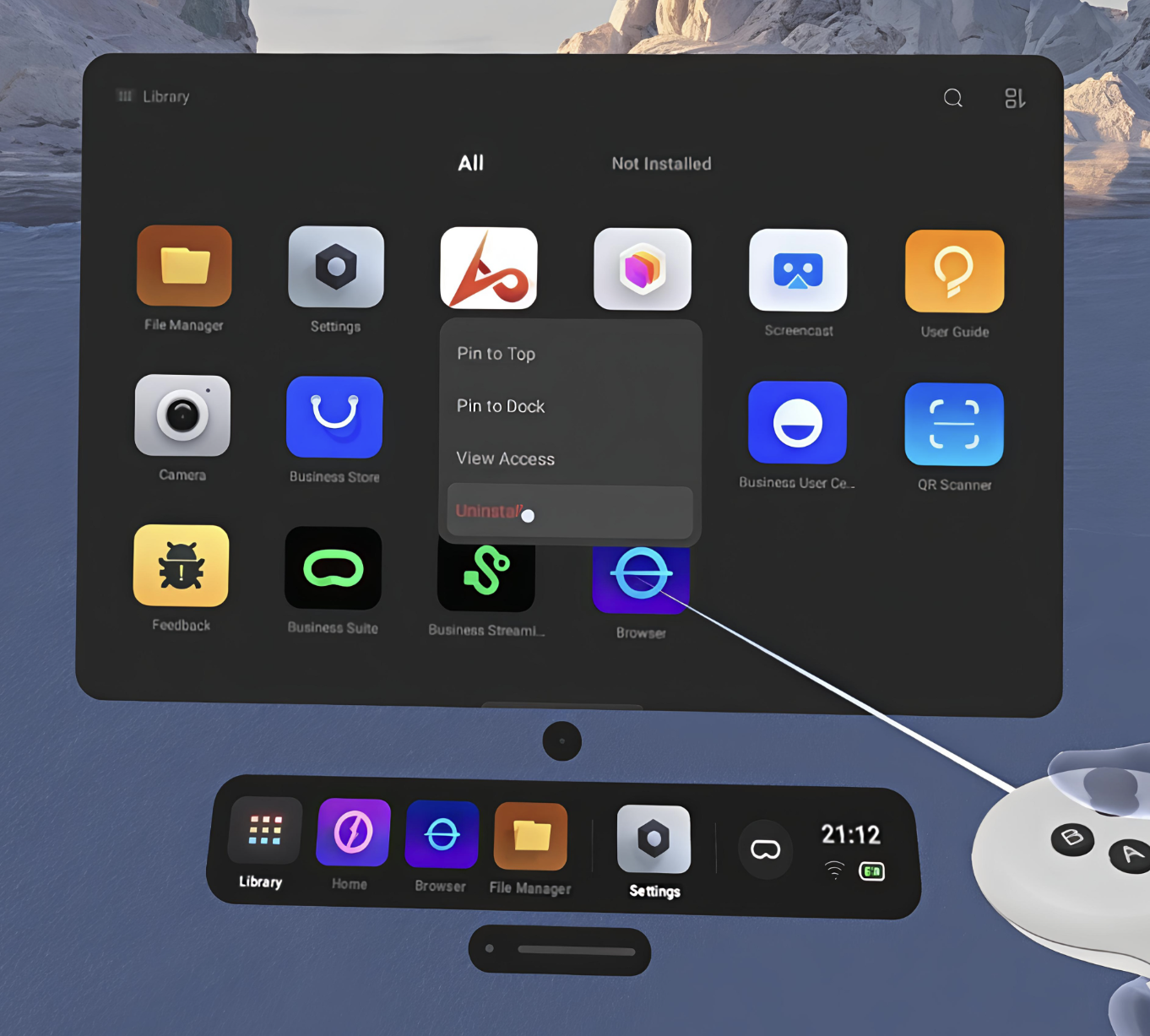
- Open the Library from the bottom menu of the VR device and find the teleoperation app. Press and hold the Grip Button on the controller, then select "Uninstall" in the pop-up window.
- Open the browser on the VR device, search for "the manufacturer", and go to the the manufacturer official website.
- Go to "Support > Downloads", select
TRON 2, and download the latest VR device app. - When the download is complete, select "Install app" in the pop-up installation prompt and wait for the installation to finish.
- After installation, you can find the teleoperation app in the Library.
Operation Video
7.3 The remote controller firmware upgrade
The remote controller firmware upgrade tool runs on Windows only.
- Download the remote controller firmware upgrade tool from the official website, unzip it, and open the software.
- Take out the remote controller charging cable and connect the remote controller to be upgraded to a Windows PC.
- With the remote controller powered off, press and hold the Left Joystick + Power button. The remote controller will enter Boot state.
- In the "COM" field, select the device number of the remote controller, then click "OPEN COM" to open the remote controller serial port.
- After the serial port is opened, the remote controller log information will be displayed, and the status shown on the remote controller screen will switch to "BootUSB".
- Download the latest remote controller firmware from the official website and save it locally. Click "OPEN FILE" and select the downloaded new firmware.
- Click "UPGRADING" to start the firmware upgrade. A prompt will pop up after the upgrade is successful.
Operation Video
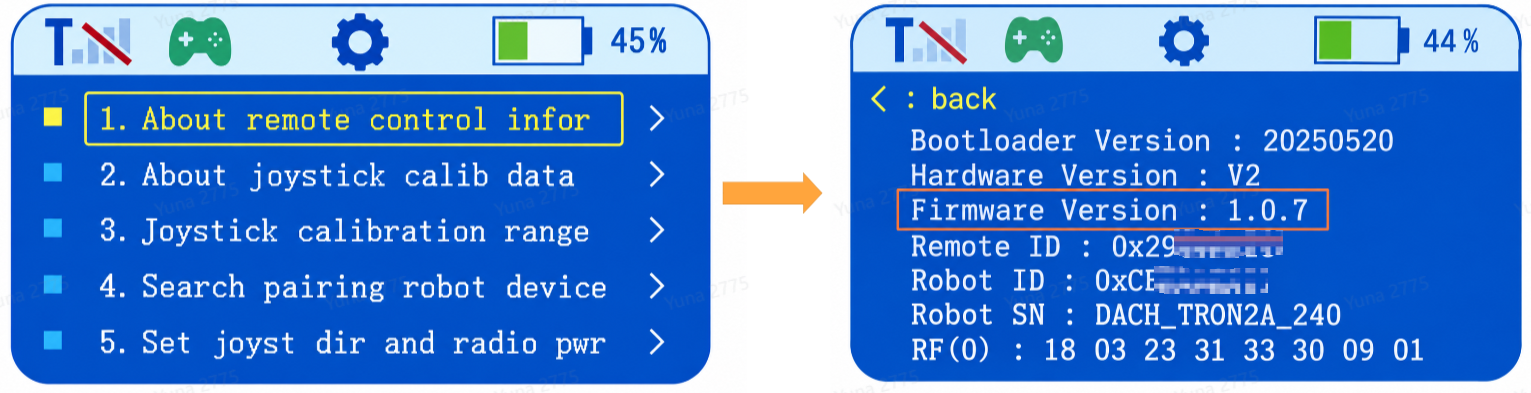
Long press the power button to turn off the remote controller. After restarting, you can verify the upgraded firmware version: double-click the Power button to enter the settings page, use the Up/Down buttons to select the first item, then press the Right button to enter. The remote controller information will be displayed, where "Firmware Version" is the current firmware version.
Dual-arm configuration details · 7.1 Upgrading Robot Firmware
Open the Robot Management page in a browser and select a previously downloaded robot software package. Follow these steps:
-
Connect and configure the IP address:
- Connect the computer to the robot.
- Run
ping 10.192.1.2in a shell to verify the connection.
-
Open the Robot Management page: Enter http://10.192.1.2:8080 in the browser address bar.
-
Select and upgrade the software:
- Go to the the manufacturer website > Download Center at https://www.limxdynamics.com/en/downloads. Select TRON 2, then download the required firmware type and version.
-
On the Robot Management page, open Version Management, select the firmware type, select Choose File, and upload the firmware package. After the upload completes, select Upgrade and wait for the process to finish.
-
NOTICE: Motor-drive firmware requires two upgrade passes for all configurations. First, select all motors, choose the downloaded TRON 2 Motor Driver Firmware package, and select Upgrade. Then select all motors again, choose the downloaded TRON 2 Motor Driver Firmware Supplementary Package, and select Upgrade.
-
NOTICE: The robot restarts automatically after some firmware upgrades.
Dual-arm configuration details · 7.2 Upgrading the VR Device App
1.Delete the installed app before upgrading.
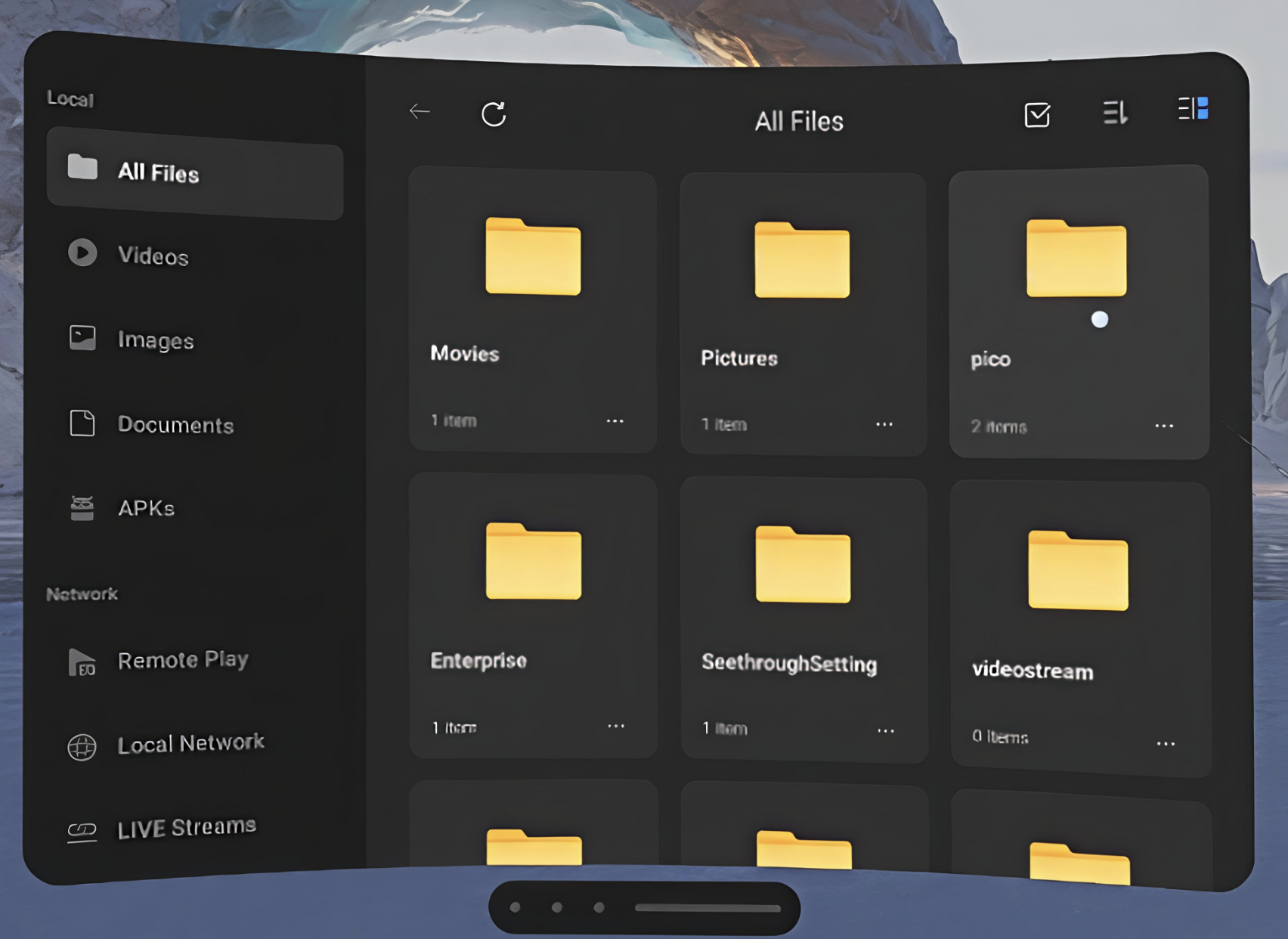
2.Connect the PICO device to the computer with a Type-C cable. Move the downloaded PICO update package to the pico folder in the PICO 4 Ultra internal shared storage.
3.Use the VR controller to open the pico folder.
4.Select the software package to install.
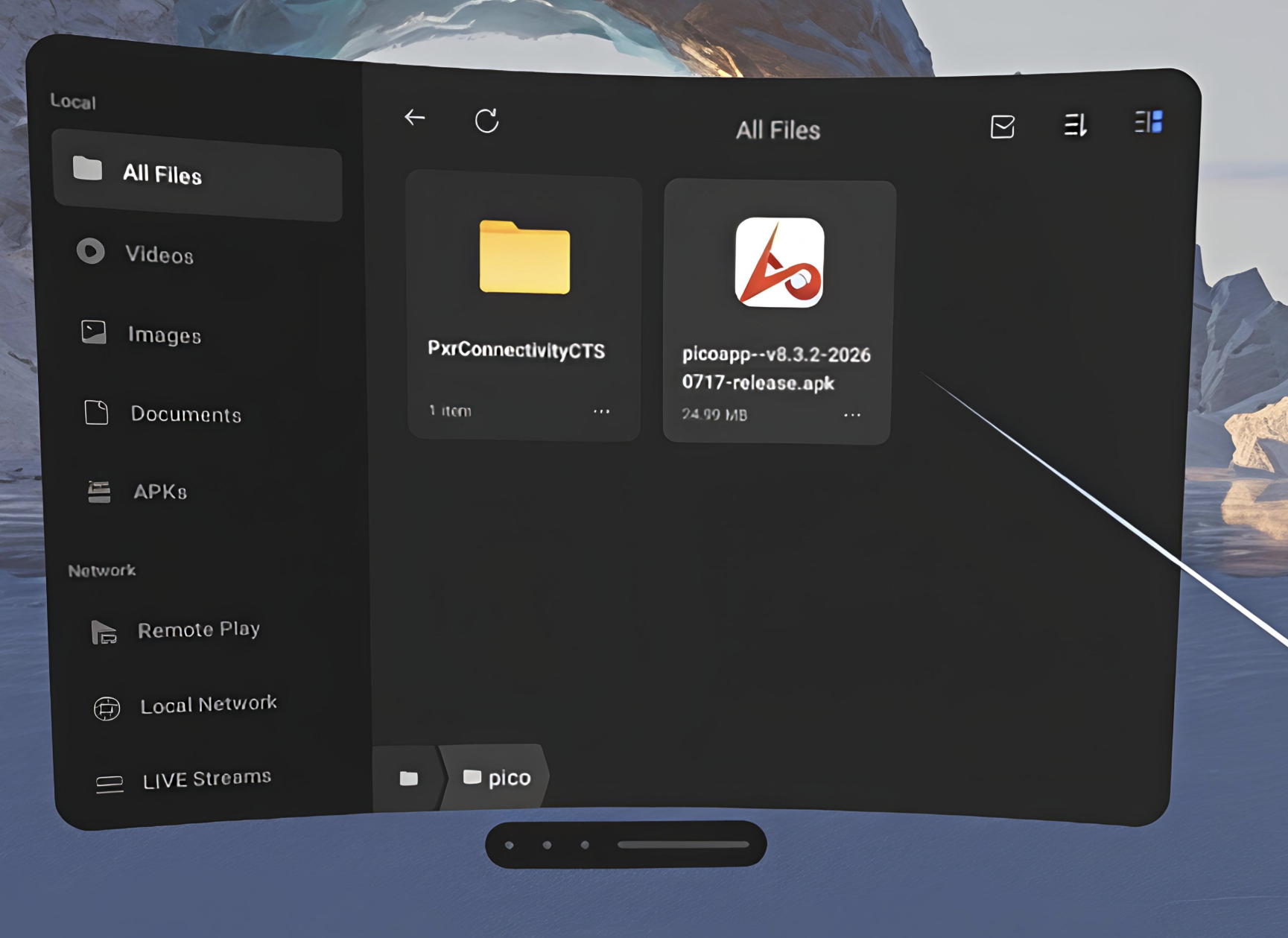
Select Install.