TRON 2 · DOCUMENTATION
Network connection
Excerpted from the supplied English User Manual v1.4. Chinese editorial corrections and later confirmations may not be synchronized. Check the Chinese reference where the two differ.
Configuration: dual-arm details apply only to dual-arm/mobile dual-arm robots. Older instructions differ in power timing, light names and homing motion; check the operational guidance and version notes on this page.
6.1 PC to dual-arm – Wired
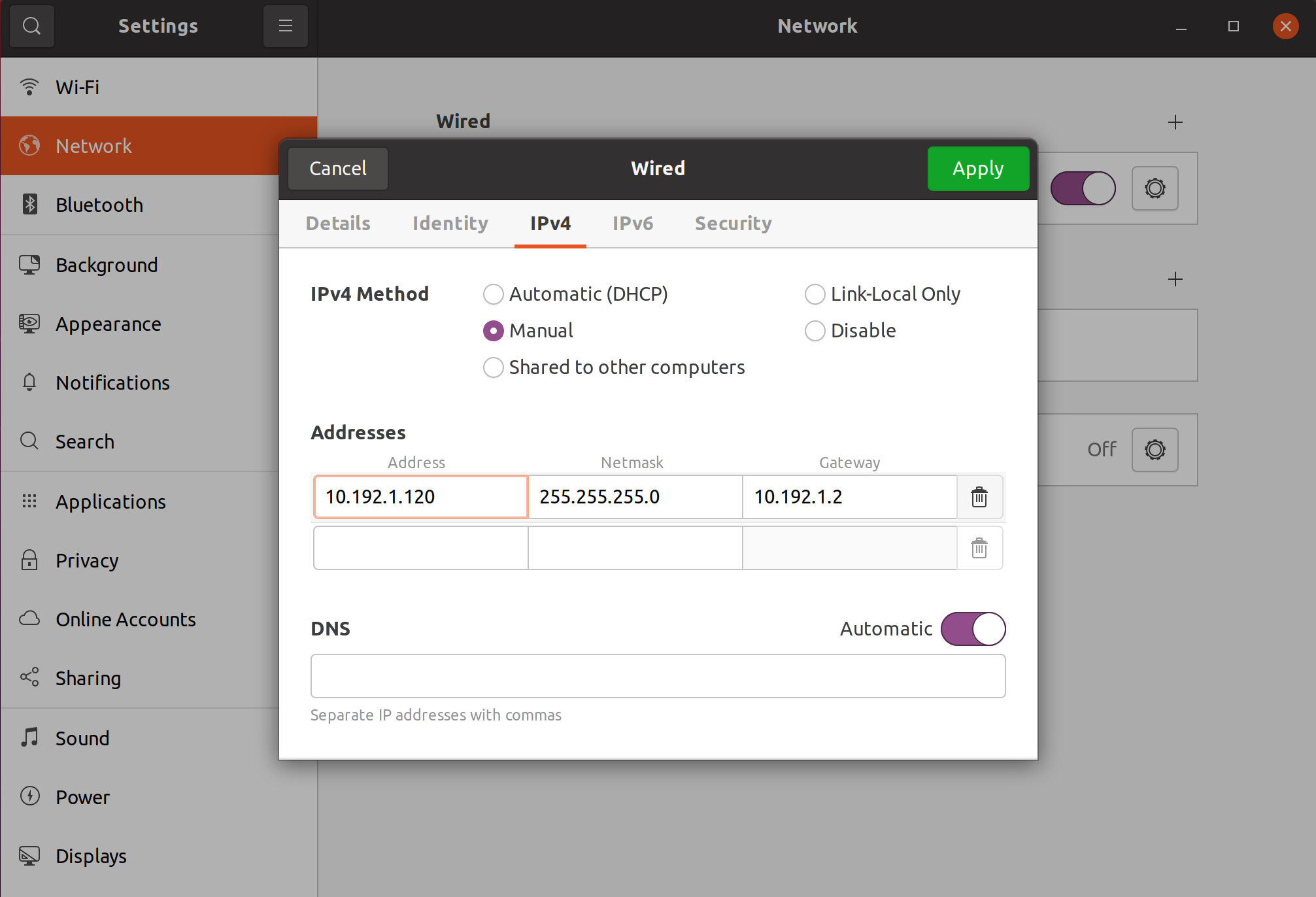
- Use an Ethernet cable to connect the Gigabit Ethernet port on the robot's rear side to the PC Ethernet port.
- Modify the IP address of the personal computer to the same network segment as the robot to access the system. The robot IP address is 10.192.1.2. For example, set the PC address to 10.192.1.120.
6.2 PC to dual-arm – Wireless
- After the robot startup is complete, use a personal computer to connect to the robot Wi-Fi. The name format is usually "TRON2A_XXX_2.4G" or "TRON2A_XXX_5G".
- Enter the Wi-Fi password:
12345678.
6.3 dual-arm to an External Network
- After the PC is connected to the dual-arm, open a browser and access the dual-arm management page at
http://10.192.1.2:8080. - Click the Wi-Fi icon on the right, and enter the Wi-Fi information required for the dual-arm to connect, including Wi-Fi Band, Wi-Fi SSID, Wi-Fi Password, and Router Admin Password.
Dual-arm configuration details · 6.1 Connecting a Computer to the Robot by Ethernet
- Connect the Gigabit Ethernet port on the rear of the robot to the computer with an Ethernet cable.
- Set the computer IP address to the same subnet as the robot. The robot IP address is
10.192.1.2; for example, set the computer IP address to10.192.1.120.
Dual-arm configuration details · 6.2 Connecting a Computer to the Robot by Wi-Fi
- After the robot starts, connect the computer to a robot Wi-Fi network. The SSID format is typically
XXXX_TRON2A_XXX_2.4GorXXXX_TRON2A_XXX_5G. - Enter Wi-Fi password
12345678.
Dual-arm configuration details · 6.3 Connecting the Robot to the Internet
- After connecting the computer to the robot, open the Robot Management page at http://10.192.1.2:8080.
- Select the Wi-Fi icon on the right and enter the external network's Wi-Fi band, SSID, Wi-Fi password, and router administrator password.
NEXTChange configuration