TRON 2 · DOCUMENTATION
External · head, wrist & waist cameras
Head, wrist and waist camera interfaces.
4 External Component Development Interfaces
4.1 Head and Wrist Cameras
For configuration and usage instructions, see the Head and Wrist Camera Guide.
4.2 Waist Camera
The robot is equipped with an Intel RealSense D435i camera. This depth camera provides depth and image data and is primarily used for terrain perception. Follow the instructions below to receive D435i camera data through ROS 1 Noetic.
- Make sure that ROS 1 Noetic is installed on your computer. See the ROS Noetic installation guide and select
ros-noetic-desktop-full. - Configure the network connection:
- Connect the development computer to the robot through the external Ethernet port.
- Set the development computer's IP address to
10.192.1.200. - Run
ping 10.192.1.2and confirm that the robot is reachable.
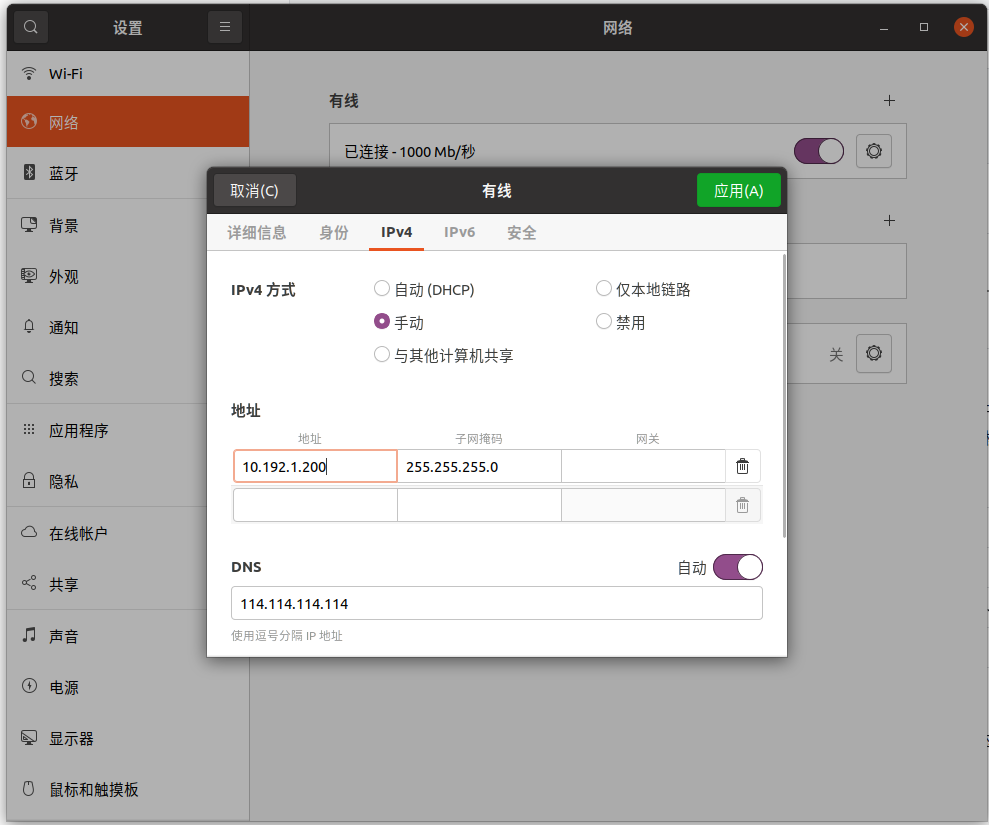
- Configure the ROS environment. Set
ROS_MASTER_URIandROS_IPso that the development computer can connect to the ROS master running on the robot. Add the following commands to the development computer's.bashrcfile to apply them automatically whenever a terminal is opened:
export ROS_MASTER_URI=http://10.192.1.2:11311
export ROS_IP=10.192.1.200
- List the topics published by the D435i camera:
rostopic list
- Visualize the camera data with
rqt_image_viewor RViz:- Install
rqt_image_view:
- Install
sudo apt install ros-noetic-rqt-image-view
- Start the tool and select the required camera topic:
rqt_image_view
- To visualize depth data in RViz, run:
rviz
In RViz, add Image and PointCloud2 displays and select the corresponding camera topics.
NEXTExternal · two-finger gripper